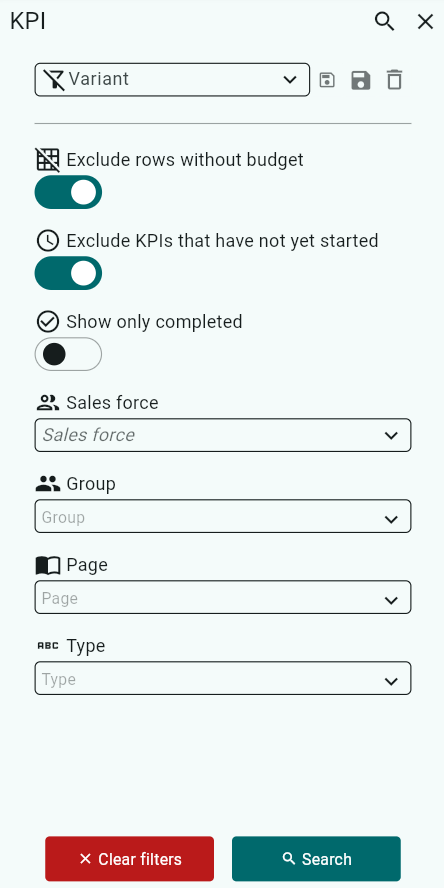
The purpose of the KPI Follow-Up function, found under the Analytics menu, is to monitor the KPIs you have created for your business. You can view the results either as speedometers (gauges) or as a KPI Map.
Start by refreshing the data to make sure all objects are updated.


By default, the page shows the speedometer view. You can switch to the KPI Map by clicking the icon with two arrows pointing in opposite directions in the top-right corner.
Speedometer View
In this view, each page or folder name (defined when creating the KPI) appears as a selectable section.
Click the arrow next to the folder name to see the KPI objects connected to that folder.
The KPI speedometer displays:

If you hover over the calendar icon (move your mouse pointer over it), you will see:
You can also hover over the question mark icon to see:
The unit the KPI is based on
Any specific chain or block included
Any specific conditions set for the KPI
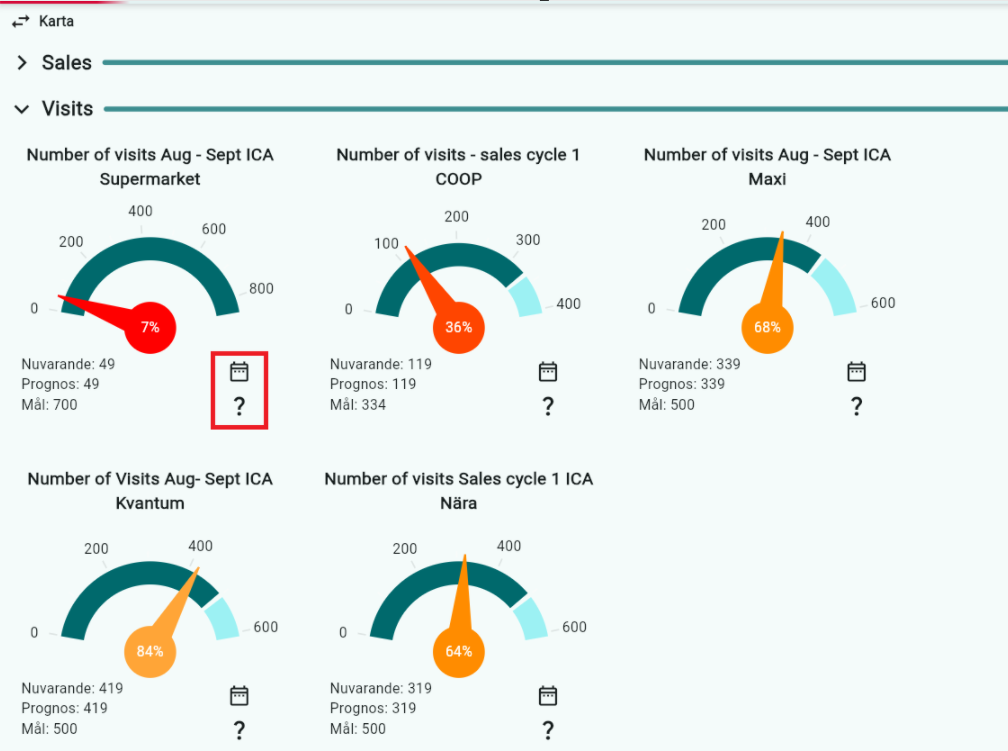
Click on a KPI object (a speedometer) to open a detailed view for that KPI.
Here you can see:
You can also edit them from this view.
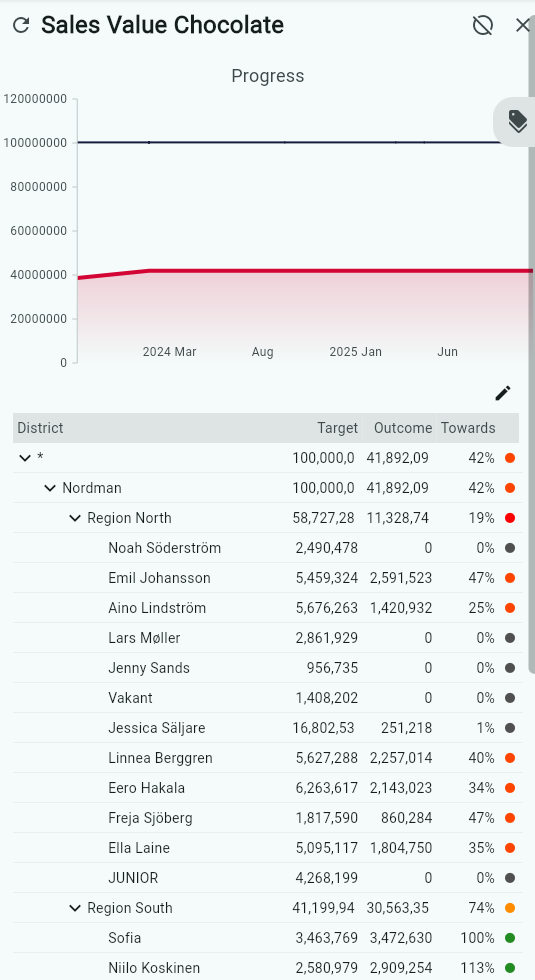
To filter by a specific region or salesperson, click the tag icon.
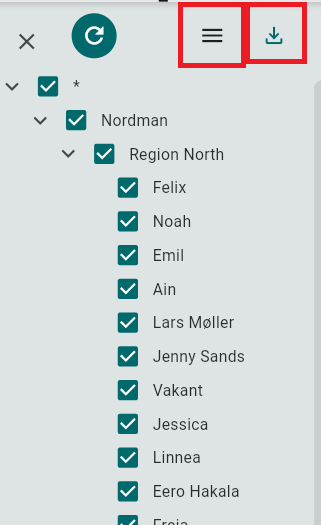
Select the regions or salespeople you want to see, then click Refresh Data.

You can export the data to Excel.
Use the icon with three lines to choose how the data is displayed:
KPI Map
To see an overview of your KPIs, click the KPI Map button
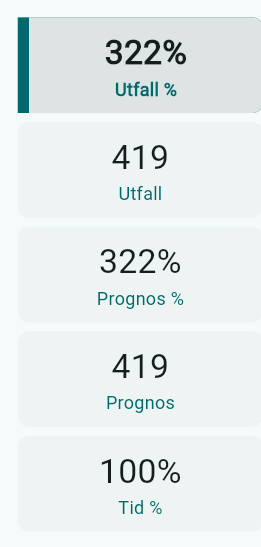
This view always shows:
Result (%)
Result (value)
Forecast
Forecast (%)
Time passed (%)
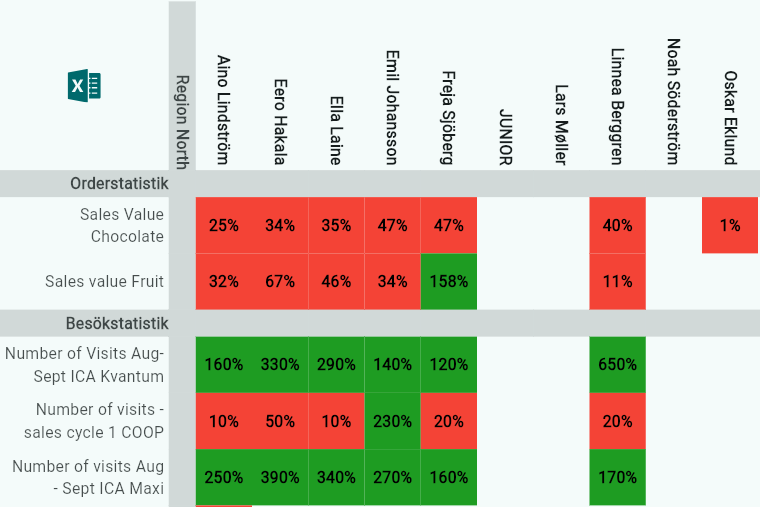
Forecast is always shown in this view, even if it was not selected during KPI creation. The purpose of the KPI Map is to provide a quick overview of how the entire sales team or region is performing by using colors.
The forecast is always shown using a linear scale.
KPI Map Structure
The KPI Map is sorted and organized in the following order:
KPI Type (for example: order statistics, market question, etc.)
Region and district
This structure makes it easier to compare KPIs within the same type and geographical area. The headings help users visually group KPIs and understand the context more quickly.
Numbers on the Right Side
The numbers on the far right show:
These numbers are shown only when one KPI is selected.
If multiple KPIs are selected, no numbers are shown because they are not directly comparable.
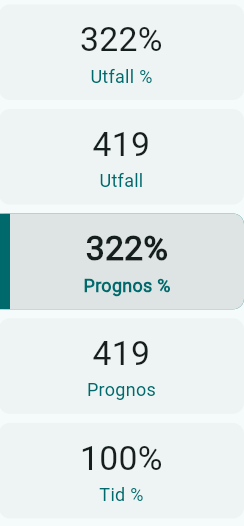
You can change which value is displayed (for example, Forecast %).
When you change the selected value, the colors in the map update automatically.
The colors always reflect the selected value.
You can select multiple salespeople:
Hold Shift + Click to select several names
Click the first name, then hold Ctrl + Shift and click another name to select all names in between
Tooltip Information in KPI Map
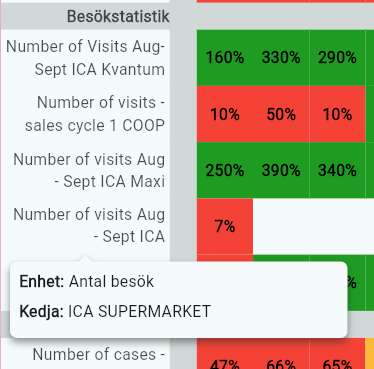
Hover over a KPI name to see a tooltip with:
The measurement unit used
Any specific chain or block included
Any additional conditions connected to the KPI
Filtering in the KPI Map
You can filtering in the KPI map by using the filtericon and then yocontrol which rows are displayed using these filters:
Exclude rows without budget (default: selected)
Exclude KPIs that have not yet started (default: selected)
Show only completed (default: not selected)
You can also filter by:
Filters help you adjust the map for different analysis needs and target groups.