Outlook Synchronization Process
Customer Request – The customer requests activation of Outlook synchronization in Argus.
Customer Information – Vitec Nordman provides information on how the integration works, what data is processed, and any potential limitations. For more detailed information, please refer to the relevant section further down in this document.
Customer Approval – The customer confirms that they have reviewed the information and approves the activation.
Feature Activation – Vitec Nordman activates the Outlook integration for the customer.
Synchronization Available – Each salesperson now has the option to synchronize their Outlook account.
Synchronization Setup
Once synchronization has been configured by Vitec Nordman, the following steps take place:
The user clicks the synchronization button.
A dialog box appears, informing the user that administrator approval is required to grant permission to sign in.
The user submits a request for sign-in approval.
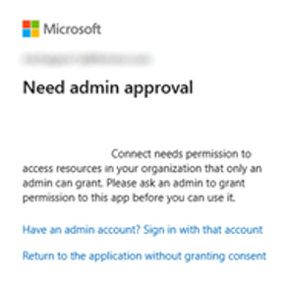
A request is sent to the organization to which the user belongs. Until the request has been approved, the user will see the following screen when attempting to sign in.
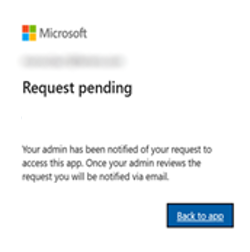
- The organization's administrator approves the request.
- The user can then synchronize Argus with Outlook.
Information About the Integration’s Functionality, Data Processing, and Limitations
Calendar
Only meeting titles are displayed in Argus.
Calendar information is synchronized from Outlook and is not stored as calendar entries in Argus.
Private meetings are only visible to the respective user.
Each salesperson can only access their own synchronized calendar information.
Calendar information is only displayed when the device is connected to the internet.
Users who have enabled the Outlook integration can send email messages directly from Argus using their Outlook account.
The integration is primarily used to send order copies via email.
Argus does not store email messages. All email messages are stored in Outlook.
Technical Specification for Calendar Synchronization and Email Integration
Protocol | OIDC (OAuth 2.0) | |
Application name | ArgusOutlook - Vitec Nordman | |
Azure Client ID / Application ID | 3ecb9daf-50b2-4d62-b659-064a23652995 | |
Callback / Redirect URL | flutter (Argus Cloud) | |
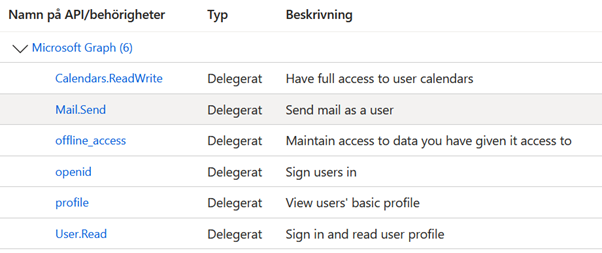
Scope / API Permissions |
| |
RP-initiated logout | Not supported | |
Secret Key | None | |
Geoblock | Argus only supports login from Europe (except Russia, Belarus), Cyprus, Greenland, Canada, Thailand, USA |
Was this article helpful?
That’s Great!
Thank you for your feedback
Sorry! We couldn't be helpful
Thank you for your feedback
Feedback sent
We appreciate your effort and will try to fix the article