Purpose
The purpose of the Distribution Analysis is to show which products are available on the shelf (in-store) and how the number of products available in the store has developed from a selected date compared with a previous measurement.
There are also several distribution reports available. More information about these can be found in the Reports manual.
What the Analysis Shows
The data source is measurements performed via inventory orders or via listings, i.e. distribution measurements in Argus.
The analysis categorizes product presence / visibility as follows:
- Available – the product is marked as available in the store
- Not available – the product is marked as not available in the store
- Not inventoried – no registration has been made indicating whether the product is available or not
Only active customers and active products (excluding listing status X) are included.
Report Structure
- Results by Region, Product Group, and Chain
- Change (+/–) is measured by comparing the most recent measurement with the latest measurement performed prior to the selected date
- If no date is specified, the most recent inventory measurement up to two years back is used
Filtering Options
- Inventory order – When selecting this option, only registrations made via inventory orders are displayed
- Products
- Chain
- Customer classes
- Article status
- Sales force
Interactive Functionality
The analysis is dynamic and responds to the filter selections and markings you make.
You can use the Available, Not available, and Not inventoried sections to filter the data. You can also filter by clicking directly on names or on the colored segments of the bars.
To view more detailed information in list format, click (i) to display a list with export functionality.
Clicking on a bar filters the other bars based on your selection.
You can also hold down the Shift key to make multiple selections at the same time (select multiple bars).
Your filter selections determine what is displayed in the detailed list.
To reset the filtering, click once again on your most recent selection or double-click on any bar.
View and Filter Controls
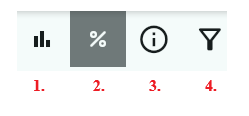
- Displays the bars as counts
- Displays the bars as percentages
- Displays a list of your selection in raw data format, with the option to export the data to Excel
- Filtering options: Regions, Articles, Chains, Customer classes
Note: If you apply a filter, you must manually remove it to return to the report’s original view.
Was this article helpful?
That’s Great!
Thank you for your feedback
Sorry! We couldn't be helpful
Thank you for your feedback
Feedback sent
We appreciate your effort and will try to fix the article